

Time
Time is where you record where your hours went, and where the agency sees which of them are billable. An entry belongs to a client, a project and optionally a task; from there on project budgets, retainers and invoices all count with it.
Where to find it
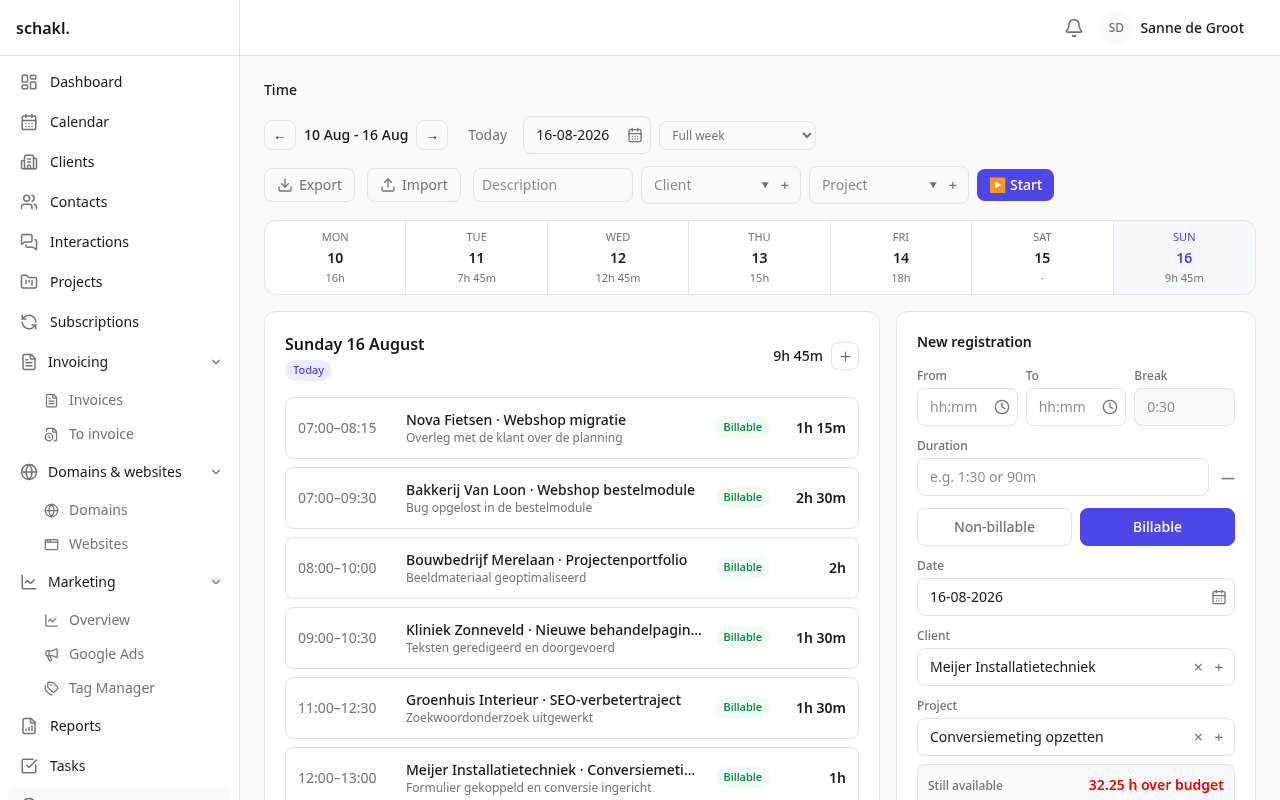
Section titled “Where to find it”Uren (Time) in the main menu is your own week. The team-wide side lives under Overzicht (Overview), with the tabs Overzicht (the year at a glance), Omzet (Revenue), Projecten (Projects), Medewerkers (Employees), Uren (the hours overview) and Marketing. The client page and the project page each carry an Uren panel. The only settings screen is Instellingen → Uren-typen (Settings → Time entry types).
The timer
Section titled “The timer”Top right sit Omschrijving (Description), Klant (Client), Project and the ▶ Starten (Start) button. A running timer stays visible with a ticking counter wherever you go in the app; Stoppen (Stop) writes the entry away. Only one runs per person: starting a new timer automatically stops and saves the one already running.
Logging an entry by hand
Section titled “Logging an entry by hand”Beside the day sits the Nieuwe registratie (New entry) form, with Van, Tot and
Pauze (From, To and Break, in minutes) plus Datum, Klant, Project, Taak,
Omschrijving and Type. The Duur (Duration) field understands 1:30, 90m or 1,5
and stays in sync with the times: change Tot and the duration follows, type a duration and
Tot moves. If Tot is at or before Van, the entry rolls into the next day, so work
crossing midnight need not be split in two.
A time you type is your office’s clock: schakl. reads it in your organisation’s time zone and
stores a real instant. An entry arriving through the API or an AI agent with an offset of its own
(12:40:00+02:00) therefore lands at the same moment, and every “which day is this” is answered in
your organisation’s time zone: an entry at 23:30 sits on its own day in the timesheet, the reports
and on the invoice.
Pick a project and Beschikbare uren (Hours available) appears underneath: spent against budget for this period, with a bar and what is left. Where that budget comes from a retainer, the agreement is named beside it.
Half-finished input stays put. The form autosaves a Concept (Draft) per day, shown as a chip above the form and as an amber dot on the day tab; Verwerpen (Discard) throws it away. A draft counts nowhere: not in totals, not in approval, not in invoicing.
Billable follows the project
Section titled “Billable follows the project”A new entry inherits Standaard facturabel (Billable by default) from the project you pick. A project covered by an active subscription with included hours starts on Niet facturabel, because the retainer already pays for those hours. Touch the toggle yourself and the form follows your choice; switching project later no longer overrules it.
The weekly timesheet
Section titled “The weekly timesheet”Below the day sits the Weekstaat (Weekly timesheet): one row per client / project / task combination, with day totals and a week total. At the top you choose Volledige week (Full week) or Werkweek (ma–vr) (Work week, Mon–Fri); that choice is saved as a personal preference. Approved leave gets its own Verlof row and never counts toward the worked totals, because leave is never written as a time entry.
Quick add and dictation
Section titled “Quick add and dictation”When the Urenhulp (Time assist) feature is on under Instellingen → AI, a Snel toevoegen
(Quick add) field appears above the day: type gisteren 14:00-16:30 website Jansen, homepage overleg into it and the form is filled in. Beside it sits Vul mijn dag aan (Fill in my day),
which suggests entries for the gap between your work schedule and what is already logged. If
Spraak naar tekst (Speech to text) is configured as well, you can dictate the line with the
microphone button. In every case the AI only fills in the form; nothing is saved until you click
Opslaan (Save).
Approving and invoicing
Section titled “Approving and invoicing”Overzicht → Uren is the team list. You filter by employee, client, project, task, period and type, and with the status pills on Goed te keuren (To approve), Goedgekeurd (Approved), Te factureren (To invoice) and Gefactureerd (Invoiced). The totals at the bottom cover the whole filtered set, not just the page on screen. The task picker lists open tasks; finished ones are behind the search. The filter lives in the URL, so an hours row on a client page or the budget figure on a task opens exactly that task’s hours.
Tick rows and use Goedkeuren (Approve), Goedkeuring ongedaan maken (Unapprove) or Markeren als gefactureerd (Mark as invoiced). Invoicing implies sign-off: a row you mark as invoiced is approved at the same moment, and unapproving an invoiced row takes the invoiced flag off with it.
Reports
Section titled “Reports”Overzicht opens on the year: revenue excl. and incl. VAT against last year, what is outstanding, the hours logged and how many budgets are over, the months in a chart, and three rankings (clients, project budgets, team) that each open the tab explaining them. The arrows step to another year.
- Omzet reads what was actually invoiced: per month, per client and per kind of line, excl. and incl. VAT, beside last year. Only issued documents count, credit notes negative in their month. Beneath it sits the value of the logged hours, with the gap between the two as a tile of its own.
- Projecten lines up budget, burn, hours and what those hours are worth per project, with the budget bands (over, almost spent, within) on top.
- Medewerkers (formerly Productiviteit) lines up hours, billable share, approval, active days and value per colleague.
With invoicing switched off, revenue is the value of the billable hours. Billable hours are priced at the hourly rate of the employee who logged them: the Uurtarief field on the person under Instellingen → Team & gebruikers (Settings → Team & users), otherwise the Standaard uurtarief under Instellingen → Verlof (Settings → Leave). Hours logged by someone with no rate anywhere are left out of the money figure, and without any rates at all you get no € 0 tiles.
On the client page
Section titled “On the client page”The Uren panel on a client groups by day and names per line the colleague, the description, the project and the task, the duration and whether it is billable (✓ or —). It says how many of how many entries it shows and links to the hours overview, filtered to this client, for the rest; the project and task on a line open exactly those hours. Through ⋯ you correct a line on the spot: your own lines, a colleague’s if you hold that right, and an approved line only if you may approve. Uren boeken in the header and + Uren schrijven in the panel open the same form in a dialog with the client already filled in; after saving the panel updates itself.
Setting up time entry types
Section titled “Setting up time entry types”- Go to Instellingen → Uren-typen.
- Click Nieuw type (New type) and enter a Dutch and an English label. The key is derived from the label and never changes afterwards.
- Save. The type appears as the Type field on the entry form and as a filter on the hours overview.
Werk (Work) and E-mail ship as defaults. A type already in use cannot be deleted; deactivate it instead, and it leaves the picker while the history stays correct.
Permissions
Section titled “Permissions”Set per role under Instellingen → Rollen (Settings → Roles).
| Permission | What it grants | Held by default |
|---|---|---|
time.entry.read | View time entries | Administrator (everyone’s), Member (own only) |
time.entry.write | Log and edit time | Administrator (everyone’s), Member (own only) |
time.entry.approve | Approve hours, and edit approved ones | Administrator |
time.entry.invoice | Mark hours invoiced | Administrator |
time.report.read | View the hours overview and reports | Administrator |
time.entry_type.read | View time entry types | Administrator, Member |
time.entry_type.manage | Manage time entry types | Administrator |
The Owner role holds everything. Import and export additionally require impex.export and
impex.import, which default to Admin only.
Good to know
Section titled “Good to know”- Export and import sit on the Uren screen itself, scoped to the week you are looking at. An import creates entries on your own timesheet; approval and invoicing are export-only columns. See Import & export.
- A reminder goes out on Monday morning to anyone who logged nothing the previous week. People who had approved leave for that whole week are skipped.
- A draft untouched for 30 days is cleaned up.
- You can log time straight from an interaction with the “Voeg aan mijn uren toe” checkbox; the client, project and subject travel with it.
- Time is a licensed module: when the licence lapses everything stays readable and exportable, but writing stops.