

Tasks
Tasks are the work itself: what has to happen, for which client, by whom and when. In schakl. those four questions are not optional fields: a task without a client is on no client record, a task without a deadline on no screen that is about time, and a task without anyone on nobody’s board. So every way of making a task asks for them straight away.
Where to find it
Section titled “Where to find it”Taken (Tasks) in the main menu. Every client record also carries a Taken panel, and every project page a to-do list. The settings screens are:
- Instellingen → Taakstatussen (Settings → Task statuses): the statuses of your tasks
- Instellingen → Taaklabels (Settings → Task labels): coloured labels
- Instellingen → Taken (Settings → Tasks): the task address that turns an e-mail into a task
- Taken → Sjablonen (Tasks → Templates): task templates and checklist templates on one screen
Tasks is part of schakl.’s open core, so it needs no licence key. The AI features on this page (dictation, changing a task in words, filling in a mailed task) need your own AI provider; see AI assistance.
The board
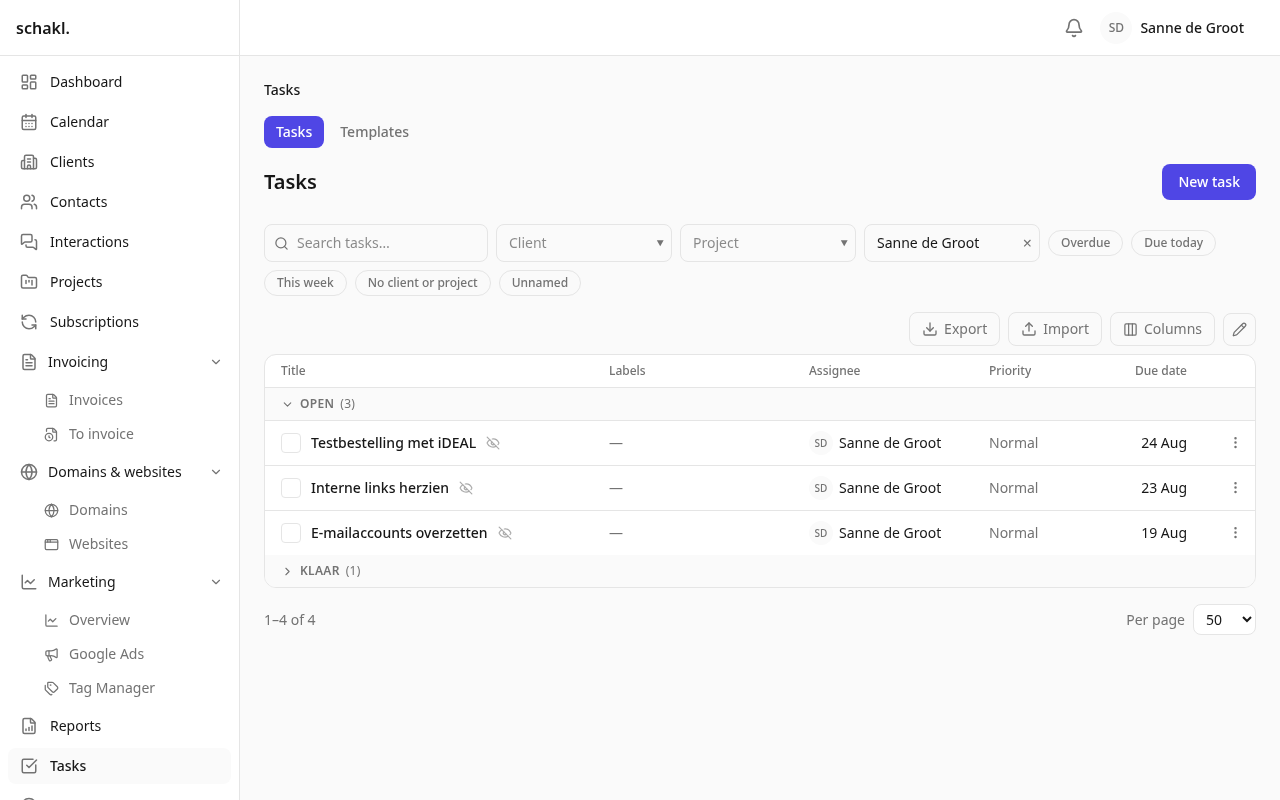
Section titled “The board”Opening Taken shows your tasks first, not everyone’s. To see the rest, pick another assignee or Geen (None) in the person picker.
The board opens on the question of when something is due, not on the order somebody once dragged cards into. The sections are Over tijd (overdue), Vandaag (today), Deze week (this week — up to and including the coming Sunday, not “the next seven days”) and Later; finished tasks sit folded under Afgerond. Inside a section the earliest deadline comes first, and on the same date the highest priority. Only Over tijd and Vandaag stand out in colour; a high-priority task gets a rail down its left edge. Every deadline also states the distance: “20 Aug · 4 days late”. To look per status instead, set Groeperen (group by) to Status; that lives in the URL, so the view can be shared.
A repeating task on a schedule shows as one row on the board: the next open task with a ”↻ +11” mark. Click it and the series unfolds underneath; Hele reeks bekijken (view the whole series) lists every task in it. A task from the series that is due today or already late always stays a row of its own, so the overdue count is right.
You can filter on client, project, assignee, label and deadline, plus free text. Zonder vervaldatum (no deadline) gathers the tasks that were created before a deadline became compulsory, so you can give them one — one at a time, or a whole selection at once through the ✎. You choose your own columns and that choice is remembered.
The ✎ switches the checkboxes on and lets you change a whole selection at once: status, assignee, priority, project, client and deadline. A deadline, a client and an assignee can be set that way but never emptied. Rows that are refused (a task whose deadline needs a reason, say) are reported per row; the rest still go through.
Finish a task and you are taken back to the board, on the same slice you came from: the work on that card is done.
Creating a task
Section titled “Creating a task”There are four doors, and they all ask the same minimum: a title, a client, a due date and who is on it.
- Nieuwe taak (New task) on the board, in a client’s header or in the client’s Taken panel opens a small dialog. On a client page the client is already filled in, and you yourself are a chip among the assignees (removable). The task only exists after Aanmaken (Create), and you land on its page to fill in the rest. A task you half thought of and dismissed therefore never sits on the board as an empty row.
- The + inside a picker creates a task the same way and selects it at once, without leaving the page.
- Inspreken (dictate) and e-mail to the task address: see below.
- Through the API, MCP or the assistant. If a call names nobody, the task goes to the project’s responsible person, else the client’s, else whoever created it.
Naming a project is naming the client, because a project has exactly one. Tasks created before a client became compulsory stay fully editable; only emptying the client is no longer possible.
Dictating a task
Section titled “Dictating a task”Beside Nieuwe taak sits Inspreken. You say the task in one go, the way you would explain it: “make a task for Jansen: new homepage copy, by Friday at the latest, high priority; first write a draft, then review with the client, then put it into WordPress; count three hours”. schakl. transcribes it and turns it into a draft with title, description, deadline, priority, client, project, assignee, labels, time budget, steps and links.
- Press Inspreken and speak (up to five minutes). A second recording is added after the first, because you do not have to say everything in one breath.
- The transcript sits under Wat je zei (what you said). If a name is wrong, correct it and press Opnieuw verwerken (process again).
- Go through the draft. Whatever schakl. filled in is marked Door schakl ingevuld.
- Taak aanmaken (create task) writes everything in one go, with the steps as a checklist. Until that click nothing is saved.
A name schakl. cannot recognise with confidence leaves the field empty rather than picking a different client; Taak aanmaken stays disabled until a client and a colleague are chosen. Dictation needs a speech provider and the AI feature Taak inspreken, aanpassen en plannen.
Mailing a task to the task address
Section titled “Mailing a task to the task address”Under Instellingen → Taken you set a Taakadres (task address), for example
taak@youragency.com. Create it as an alias or group in your own mail domain. A colleague mails
that address (a note, a forwarded client mail, a photo) and a task appears on their board.
schakl. reads it through the sender’s connected mailbox, via Google Workspace or Microsoft 365, so
no separate mail server is involved. The sender is also who creates the task: someone who may not
create tasks, or may not see the client, is refused here exactly as they would be anywhere else.
- The subject becomes the title. You name the client in square brackets: “[Nova Fietsen] Renew SSL certificate”.
- Lines at the top of the mail fill in fields:
klant:,voor:,deadline:,project:,labels:andprioriteit:(client, for, deadline, project, labels, priority). English words work too. A deadline may be a date or a word such as “Friday”, and “by 1 October” in running text is read as well. If the mail names no deadline, Standaarddeadline (default deadline, in days after receipt) applies. - A forwarded client mail is recognised by the people in it, when they are contacts of exactly one client. That forwarded mail is filed on the task as a contact moment, under the original sender’s name and date. Your own words above it become the description, without your signature. Attachments come along; one that is not allowed is named in the task.
- With the AI feature E-mail naar taakadres (mail to task address) switched on, schakl. fills in what your own words left open (a client, a colleague, a deadline, steps and links) and never overwrites what you wrote. The description is then schakl.’s summary of your words rather than the words themselves.
- One mail may become several tasks. Empty a phone call into one mail (“the DNS for Nova, the
newsletter for Klokuus, and Jan still has to check the contract”) and schakl. makes a task per
piece of work that can be assigned, dated and finished on its own, up to eight. Work for
different clients is always split; the steps of one job stay one task with a checklist; when in
doubt, one task. What you typed yourself (
klant:,voor:,deadline:,[Client]) applies to every task. The forwarded mail is filed once, on all of them, and each attachment goes with the task that names it. Splitting is the model’s call, so it needs the AI feature.
If the client cannot be determined, the mail waits under Taken → E-mailinbox (e-mail inbox). That tab only appears while something is waiting; you pick the client and finish the task. A mail that became several tasks waits whole when any of them lacks a client: the card lists the planned tasks, the client you pick fills only the ones that had none, Maak er toch één taak van (make it one task instead) folds them into one task with each as a step, and 3 taken aanmaken (create 3 tasks) creates them all. Either way you get a notification saying for which client, for whom and with which deadline the task was made, and which of those schakl. chose itself. A mail sent only to the task address never becomes a contact moment; a client mail with the task address in Cc becomes both.
Setting up statuses
Section titled “Setting up statuses”Under Instellingen → Taakstatussen you rename, recolour and reorder the statuses, or add your own. Each status carries three flags:
- Afgerond (finished): an end state. It decides when a task counts as done, folds away on the board, and triggers a recurrence set to “after completion”.
- Standaard (default): where new tasks start.
- Contactmoment vereist: this status is only reachable through a logged contact moment.
A task
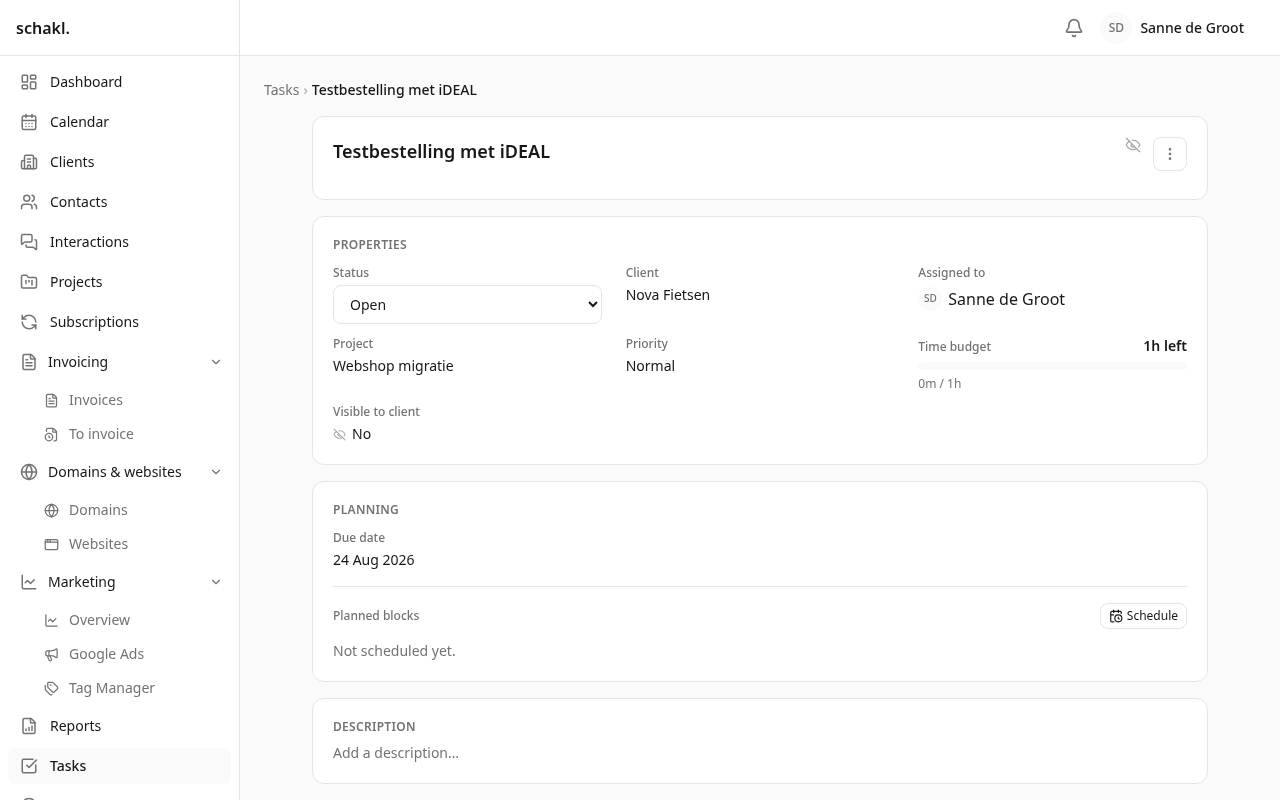
Section titled “A task”The task page has one mode: you edit every field where you read it. Click the title to rename it, a property (Status, Prioriteit, Toegewezen aan, Project, Klant, Vervaldatum, Tijdbudget) to change it, the description to write. A pick from a list is saved at once; click anywhere else and the field closes without changing anything. The status shows as a dot in its colour beside its name. The time budget is shown against the hours logged on the task, as “x left” or “x over budget”.
- Labels: coloured, org-wide, and creatable from inside a task.
- Checklists: several per task, each with a description, and items that may carry their own explanation. An item or a list is renamed by clicking its text, and its explanation is edited where you read it. Uit sjabloon (From template) pulls in an existing checklist; Opslaan als sjabloon (Save as template) puts this one in the shared library. Stappen schrijven met schakl (write steps with schakl) builds a checklist from the title and the description.
- Links & bijlagen: URLs plus real files. You paste a screenshot with Ctrl+V, images show as thumbnails and open in a viewer, and per file the eye icon decides whether the client may see it. See Files.
- Reacties (comments): with @mentions of colleagues and contacts,
#references to other tasks, and images pasted into the text. You can reply to a comment; a long conversation folds its older comments away (“Toon 26 oudere reacties”). Volgorde (order) chooses Nieuwste eerst (newest first) or Oudste eerst (oldest first); schakl. remembers it per person, and replies always sit under their question. A notification about a comment opens the task on that exact comment, with the reply box ready underneath. - Activiteit: everything that happened to the task, from creation to an extended deadline and its reason. The name of whoever did it is snapshotted, so it stays readable after the account is gone.
Tick the last open item and schakl. offers to move the task to its finished status.
Changing a task in words
Section titled “Changing a task in words”Under the description sits the Aanpassen met schakl box (adjust with schakl). You type or speak what should change: “add a step for the DNS change, deadline Friday, note that the client wants it in blue”. schakl. reads the whole card and applies the change as you: every edit is on the activity trail under your name and passes the same rules as an ordinary edit, so a later deadline takes your sentence as its reason. The client and project are never changed this way. The box is only drawn when the AI feature is on and you may edit the task.
Two switches that reach beyond the task
Section titled “Two switches that reach beyond the task”- Alleen afsluiten met een contactmoment (close only with a contact moment): this one task may only reach a finished status through a contact moment designated as its closer. Independent of the status flag, so a single task can demand it without the whole status doing so.
- Zichtbaar voor klant (visible to client): off by default. When on, a portal contact of that client can see the task and comment on it. A client never sees a task’s labels.
A task can also be assigned to a contact of its own client instead of to an employee: “waiting on the client”. The task then becomes visible to the client by itself, appears among that contact’s own tasks in the portal, and if they hold an active portal login they get an e-mail about it. Never an employee and a contact at once.
Planning it on the calendar
Section titled “Planning it on the calendar”A deadline is not the same thing as the moment you work on it. Under Agenda → Nieuw → Inplannen (Calendar → New → Schedule), and from the Planning panel on the task itself, you plan blocks:
- Pick the task; its time budget and deadline are shown beside it.
- Choose Voor wie (for whom): one or more colleagues as chips, by default everyone on the task. Yourself always; a colleague only with the matching permission. One block is made per person.
- Fill in Datum, Starttijd, Duur (minuten) and optionally a Notitie.
- Beside the form is that day, one column per person: what is already planned, leave, and their Google or Outlook appointments. The new block is drawn dashed on top, and above it you read Geen overlap (no overlap) or Overlap: 2, with what each clash is.
- The block appears on the Agenda and can be dragged to another day.
- Once the block has passed it offers Uren registreren (log time). That creates the real time entry and marks the block as logged, so you never write it twice.
For a colleague you only see Bezet (busy) and the time window, unless you may read their planning. An appointment from someone’s own Google calendar is only ever a time window for anyone, never a title. One task may carry several blocks; with the Google or Microsoft integration connected they also land in that person’s calendar, titled “Client: Task”.
Recurrence
Section titled “Recurrence”A task can repeat Dagelijks, Wekelijks, Maandelijks, Per kwartaal or Jaarlijks, on a fixed day if you want one: a weekday, a day of the month, or a weekday of the month (“every month on the second Tuesday”). There are two modes:
- Na afronden (after completion): the next task appears the moment you finish this one.
- Op schema (on schedule): every task for the coming year is created straight away, each on its own date, and the rule keeps a year ahead ready. So you can see a quarter ahead of what is coming, and hand work over before it arrives.
With Op schema, one rule is one series. The rule lives on the first task; every other task in the series says what it belongs to and links to Regel bewerken (edit rule). Change the rhythm and the future tasks not yet finished are laid out again; anything already done stays. Each next task carries title, description, priority, client and project, assignees, labels, time budget, links and checklists (unticked again); comments, attachments and planned blocks do not.
Hand a task in a series to someone else and schakl. asks: Alleen deze taak (this task only) or Deze en alle volgende (this one and all following). All following moves the assignees of the later tasks, and also the blocks already planned and the name in the rule’s planning. Useful when someone leaves.
With Plan elke volgende taak meteen in (plan every next task straight away) each new task gets its time blocks at once. Blok toevoegen (add block) puts down more than one, each with its own moment (Op de deadline, Dagen vóór de deadline, Dagen na de deadline, Een weekdag van die week, Een weekdag van de maand or Een dag van de maand), its own time and length, its own people and a note. The preview shows the real dates of the next occurrence; a block that would fall before today is never booked.
Templates
Section titled “Templates”Taken → Sjablonen holds two libraries. A takensjabloon (task template) is a named set of tasks, each with a priority, Deadline na so many days, a time budget, an assignee or Verantwoordelijke van de klant (the client’s responsible person, resolved at apply time), and a checklist. Apply it Handmatig (manually) from a client record with Sjabloon toepassen, or automatically Bij klantstatus (on client status): the tasks appear as soon as a client reaches that status. A subscription type can roll its templates out the first time an agreement becomes active. A template line without Deadline na gets the day it is applied as its deadline. Checklistsjablonen (checklist templates) are reusable checklists anyone can attach to a task.
Reminders
Section titled “Reminders”A daily job announces what is overdue and what falls inside your own threshold; you set that per person under Instellingen → Meldingen (Settings → Notifications), field Bijna verlopen (dagen) (due soon, in days). A task announces itself once per deadline, and again as soon as someone moves it. Finish the task and the reminder disappears for everyone who had not opened it yet.
Permissions
Section titled “Permissions”| Permission | Held by default |
|---|---|
tasks.task.read | Administrator, Member, Client |
tasks.task.create | Administrator, Member |
tasks.task.write | Administrator (any), Member (own) |
tasks.task.delete | Administrator |
tasks.comment.write | Administrator (any), Member and Client (own) |
tasks.schedule.read | Administrator (anyone’s), Member and Client (own) |
tasks.schedule.write | Administrator (anyone’s), Member (their own) |
tasks.label.write · tasks.status.write | Administrator |
tasks.template.write · tasks.template.apply · tasks.checklist_template.write | Administrator |
tasks.settings.manage | Administrator: Instellingen → Taken and the task address |
For a task, “own” means the task is assigned to you. A member therefore edits their own tasks and not somebody else’s. For a client, “own” on the planning means blocks on a task they may see, without the internal note. All of it is adjustable per role under Instellingen → Rollen (Settings → Roles).
Good to know
Section titled “Good to know”- Deleting a task takes its comments, checklists, links and planned blocks with it. Hours already logged survive; they simply lose their task link. Delete the first task of a series and the future tasks not yet finished go with it.
- Import always creates new tasks. Task titles legitimately repeat, so there is no honest
key to update on. Client and due date are required columns, and the preview names the row
where they are missing. The
assigneecolumn matches on the employee’s e-mail address, andstatusis checked against your own status list. Exporting works normally; see Import & export. - A task from an automation rule takes the client of the task or client the rule fired on, and a deadline from the rule itself (by default the day it fires).
- The Sjablonen tab only appears for people allowed to manage templates; a portal client never reaches it.
- The Dashboard carries the widgets Mijn openstaande taken (my open tasks) and Openstaande taken per project / klant, and the Agenda the feeds Ingeplande taken (scheduled tasks) and Taakdeadlines (red once something is overdue).
Read next
Section titled “Read next”- Projects — where tasks get their budget and to-do list
- Clients — the record with the tasks panel
- Calendar — where planned blocks show up
- AI assistance — dictation, changing a task in words and the task address
- Import & export