

Calendar
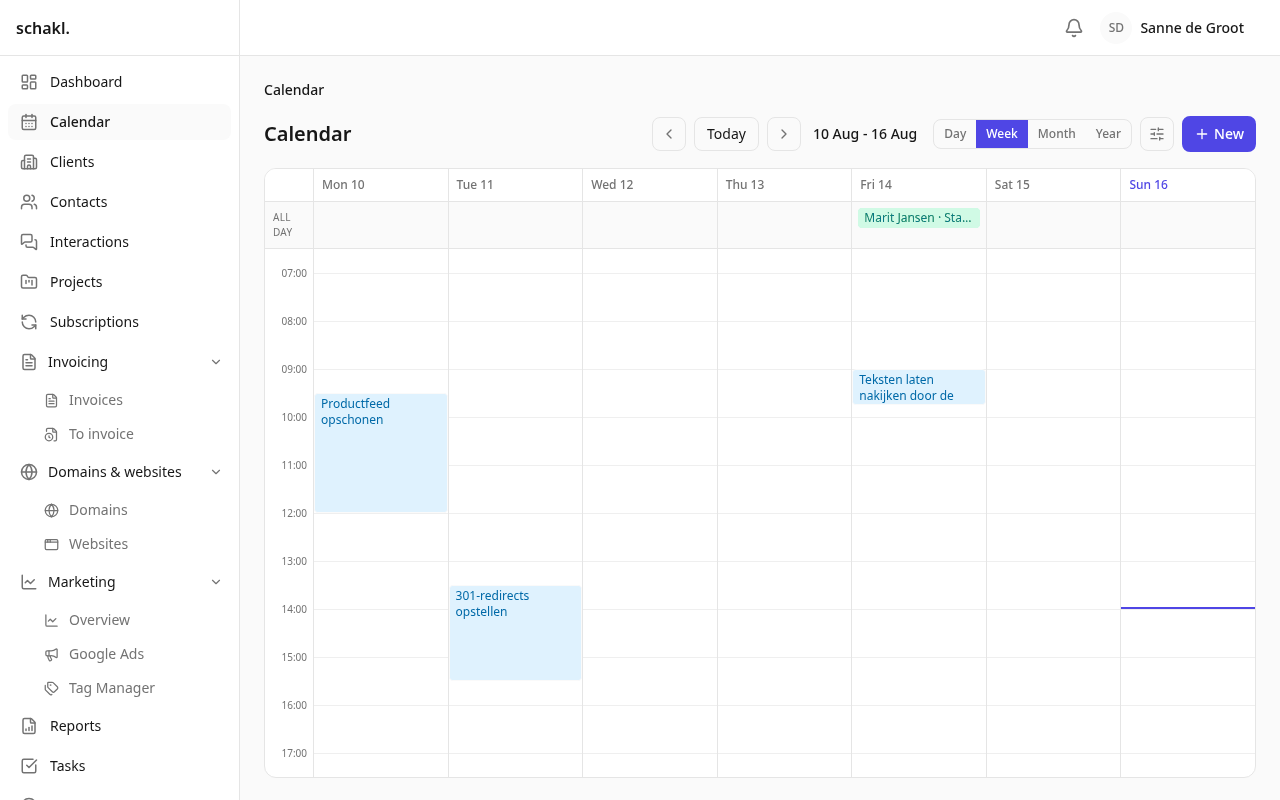
Planned work, deadlines, who is away and what is in your Google or Outlook calendar are four different questions that a week only answers together. The agenda puts every one of them on the same grid, each as a feed you can hide, recolour or split per person.
Where to find it
Section titled “Where to find it”Agenda in the main menu. Four views — Dag, Week, Maand and Jaar (day, week, month, year) — with Vandaag (Today) and the arrows to move, and a filter button beside them holding every feed.
The view you leave it on is remembered, so the agenda opens the way you last used it.
The feeds
Section titled “The feeds”| Feed | What it draws |
|---|---|
| Ingeplande taken | Task blocks, positioned at the hour they were planned for |
| Deadlines | A task’s due date, as an all-day marker |
| Teamverlof | Approved and pending absence, per colleague |
| Beschikbaarheid | A freelancer’s own deviations from their base week |
| Feestdagen | The public holidays your organisation actually observes |
| Google Agenda | Your own connected Google calendar, plus the shared calendars you tick |
| Outlook-agenda | The same for Microsoft 365: your default calendar plus the calendars you tick |
Each feed can be switched off, recoloured, and — for planned tasks, leave and availability — split per colleague (Per collega), so one colleague’s blocks or absence keep their own colour while the rest share theirs. A colleague’s own colour beats the whole feed’s. Those choices are yours and are stored against your account. A colleague who has left no longer appears in those lists.
Which Google or Outlook calendars come along you choose on your own account page under Agenda’s (calendars): your primary or default calendar always syncs, and every shared calendar you tick gets its own row in the feed menu with its own colour and its own toggle. Untick one and its events disappear at once. Opening the feed menu costs no request to Google or Microsoft: the agenda reads from the copy the integration keeps.
Planning work onto it
Section titled “Planning work onto it”A task can carry a planned block: a day, a start time, a duration and who it is for. That block appears here, in that person’s colour, and it can be dragged to another day or time — the task moves with it. One task can be planned for several colleagues in one go: each gets a block of their own. The planning dialog draws that day beside the form, with what each person already has (planned blocks, leave, appointments), so you see a double booking before you make it. For a colleague you only see Bezet (busy) there, unless you may read their planning.
- Open a task and use Inplannen (Plan) to give it a block.
- Or press + Nieuw on the agenda and pick what you are adding.
- Drag a block to move it. Blocks are draggable; the chips that stand for leave are not, because a chip is one occurrence of a rule and moving it would move the rule.
Planning is not the same as logging. A block says when you intend to do it; hours are recorded separately, and finishing a task offers to log the time against the block that was planned for it, so the same work is never counted twice.
Google and Outlook, and which way it flows
Section titled “Google and Outlook, and which way it flows”With the Google Workspace or Microsoft 365 integration connected per employee, your own calendar appears as a feed here, and what schakl. schedules is mirrored the other way: approved leave and planned task blocks are written into your calendar. A task block is titled “Client: Task” there, so your own calendar says whose work it is. Connect both and a block lands in both.
A leave type decides how its absence is drawn: an all-day chip, or a positioned block between the hours the person was scheduled to work. That is a property of the kind of leave rather than of one request — whether an absence reads as “away today” or “away between 08:30 and 17:00” is the same answer every time — and the mirror in Google or Outlook follows the same flag, so one absence is never an hour block here and an all-day banner there.
Permissions
Section titled “Permissions”The agenda declares none of its own: each feed carries the permission of the module behind it. So somebody who may not read other people’s hours simply gets an agenda without the team feed, rather than an agenda that refuses.
| Feed | Behind it |
|---|---|
| Ingeplande taken, Deadlines | tasks.task.read, and tasks.schedule.write to plan |
| Teamverlof | leave.request.read |
| Beschikbaarheid | leave.availability.read |
| Google Agenda | Your own Google connection |
| Outlook-agenda | Your own Microsoft 365 connection |